Task Todo List
Keep your tasks on track with integrated todo management that helps you stay organized and focused on your development goals. Task Todo Lists provide interactive, persistent checklists that track your progress through complex, multi-step workflows directly within the chat interface.
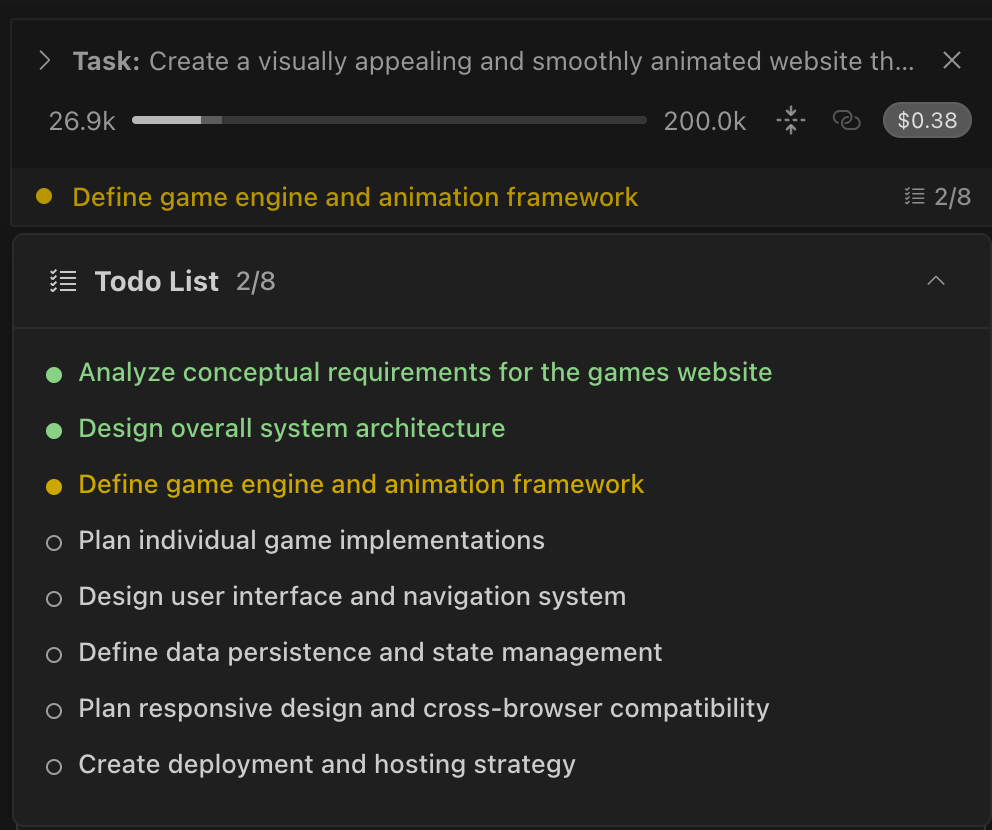
Todo lists are automatically created for complex tasks, multi-step workflows, or when using Architect mode. You can also manually trigger them by asking Controller to "use the update_todo_list tool" or "create a todo list".
See When Controller Creates Todo Lists for detailed information about automatic and manual triggers.
Use Case
Before: Manually tracking steps for a complex task in your head or a separate notes file, making it easy to lose track of progress and next steps.
With Task Todo Lists: Controller automatically creates and manages a structured checklist embedded in the conversation. You can see the status of each item, watch as the AI marks items complete, and provide feedback when Controller presents updates for approval.
How It Works
The Task Todo List feature is powered by the update_todo_list tool, which enables dynamic task management within the chat interface.
When Controller Creates Todo Lists
Controller creates todo lists through both automatic detection and manual requests:
- Task complexity detected - Multiple steps, phases, or dependencies identified in your request
- Working in Architect mode - Always creates todo lists as the primary planning tool for structuring work
- Direct tool request - Say "use the update_todo_list tool" or "please use update_todo_list"
Remember: Even when manually triggered, Controller maintains control over the todo list content and workflow. You provide feedback during approval dialogs, but Controller manages the list based on task needs.
Display and Interaction
Todo lists appear in multiple places:
-
Task Header Summary: A compact, read-only display showing progress and the next important item via the
TodoListDisplaycomponent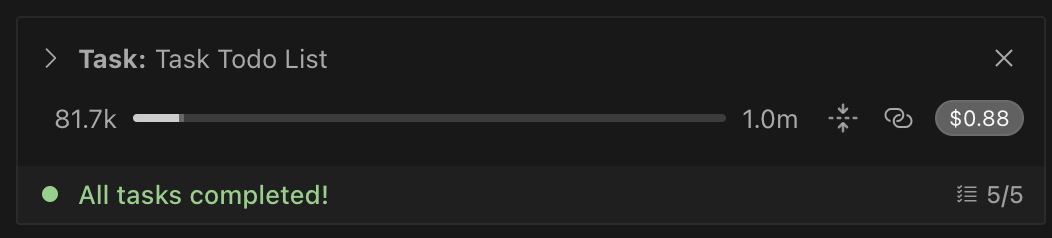
-
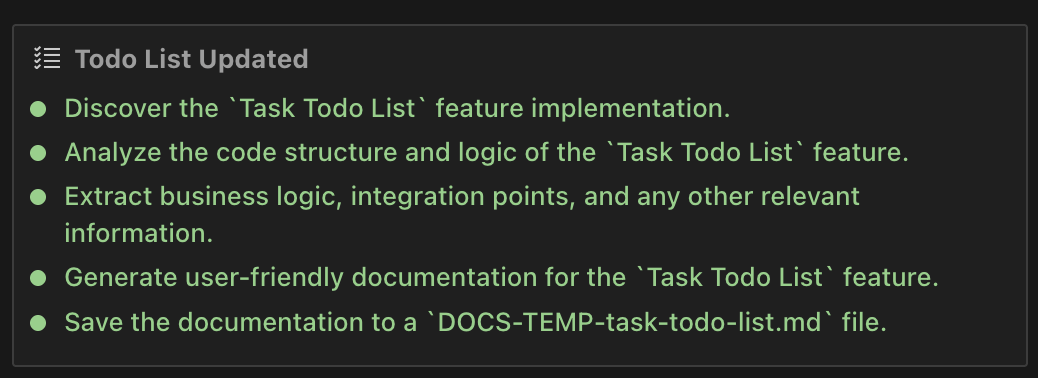
Interactive Tool Block: An interface within the chat via the
UpdateTodoListToolBlockcomponent that allows you to:- View all todo items with their current status
- Click the "Edit" button to enter edit mode where you can:
- Modify task descriptions directly
- Change task status using dropdown selectors
- Delete tasks with the × button
- Add new tasks with the "+ Add Todo" button
- Stage changes that are applied when Controller next updates the list
- View the progression as Controller manages the todo workflow
-
Environment Details: Todo lists appear as a "REMINDERS" table in the environment_details section, giving the AI persistent access to current todo state. Note: If the
todoListEnabledsetting is disabled, the reminders section will not appear in environment details.
Expanded Todo View
When you click on the collapsed todo summary in the task header, a floating panel appears with enhanced functionality:
- Backdrop overlay: Click outside the panel to close it
- Full todo list display: Shows all todos with their current status indicators
- Auto-scroll: Automatically scrolls to the current in-progress task
- Smooth animations: Collapse and expand transitions for better user experience
- Persistent state: Maintains your scroll position when reopening
Understanding Task Status
Controller automatically manages status progression based on task progress. Each todo item has one of three states:
Pending: Shows an empty circle with a border, indicating the task hasn't been started yet

In Progress: Displays a filled yellow circle, showing the task is currently being worked on

Completed: Features a filled green circle, confirming the task is fully finished

Editing Todo Lists During Approval
When Controller presents a todo list update for approval, you have full control through the Edit mode:
- Click "Edit" to enter edit mode
- Make your changes:
- Edit task descriptions inline
- Change status using the dropdown menu (Pending/In Progress/Completed)
- Remove tasks with the × button
- Add new tasks with the "+ Add Todo" button at the bottom
- Save or Cancel your changes
- Approve or Reject the overall update
Note: Your edits are staged and only applied when Controller processes the next todo list update. This maintains Controller's control over the workflow while giving you input on task details.
FAQ
"Can I create my own todo lists?" Yes, you can manually trigger todo list creation by asking Controller to "use the update_todo_list tool" or "create a todo list". However, Controller maintains control over the todo list content and workflow - you provide feedback during approval dialogs, but Controller manages the list based on task needs.
"Can I use todo lists for simple tasks?" Controller typically only creates todo lists for complex, multi-step tasks where they provide clear value. For simple tasks, the overhead of list management isn't necessary.
"Why can't I directly control the todo list?" This is an architectural design decision where Controller maintains authority over task management. You provide guidance and feedback, but Controller controls the workflow to ensure consistent task progression and accurate status tracking.
Configuration
Disabling Todo Lists
You can disable todo lists entirely through the todoListEnabled setting. When disabled:
- Controller will not create todo lists for any tasks
- The REMINDERS section will not appear in environment details
- Existing todo lists will remain visible but won't be updated
Auto-Approving Todo List Updates
You can enable automatic approval of todo list updates to reduce interruptions during long workflows. When enabled, Controller will automatically update task progress without requiring confirmation for each change.
To configure this feature, see the Update Todo List auto-approval settings.