Login/Signup
Connect your Controller extension to Controller Cloud to sync your prompts, access online task history, and enable sharing and collaboration features.
Getting Started
To connect to Controller Cloud, click the cloud icon in the top right corner of the Controller plugin.
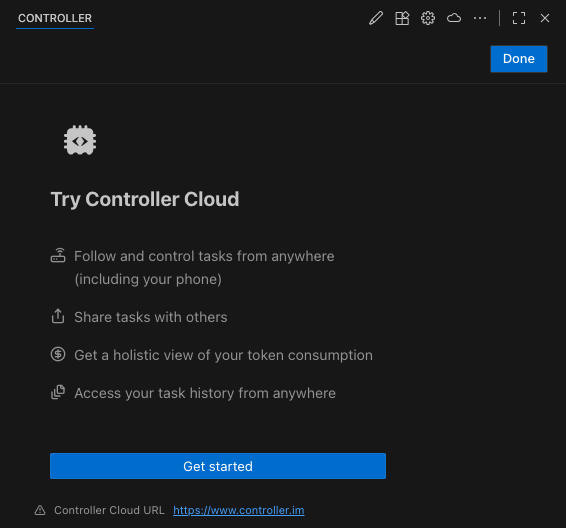
Click the Connect button to begin the authentication process. You'll be redirected to the Controller Cloud website.
Sign In Options
You'll see the sign-in page with multiple authentication options:
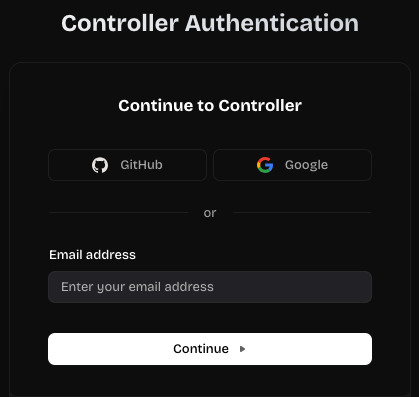
Choose your preferred login method:
- GitHub - Sign in with your existing GitHub account
- Google - Sign in with your existing Google account
- Email - Enter your email address to continue with email authentication
Creating a New Account
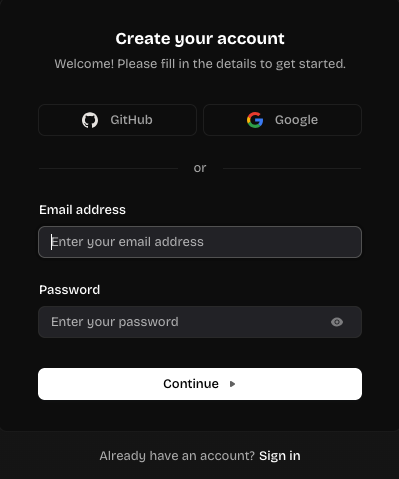
If you don't have an account yet, you have two options to create one:
Option 1: Sign Up with GitHub or Google
The quickest way: sign in with GitHub or Google, accept the Terms, and you're in.
After creation:
- If connecting from VS Code: you'll see a confirmation popup
- If signing up directly at www.controller.im: you'll land on your dashboard
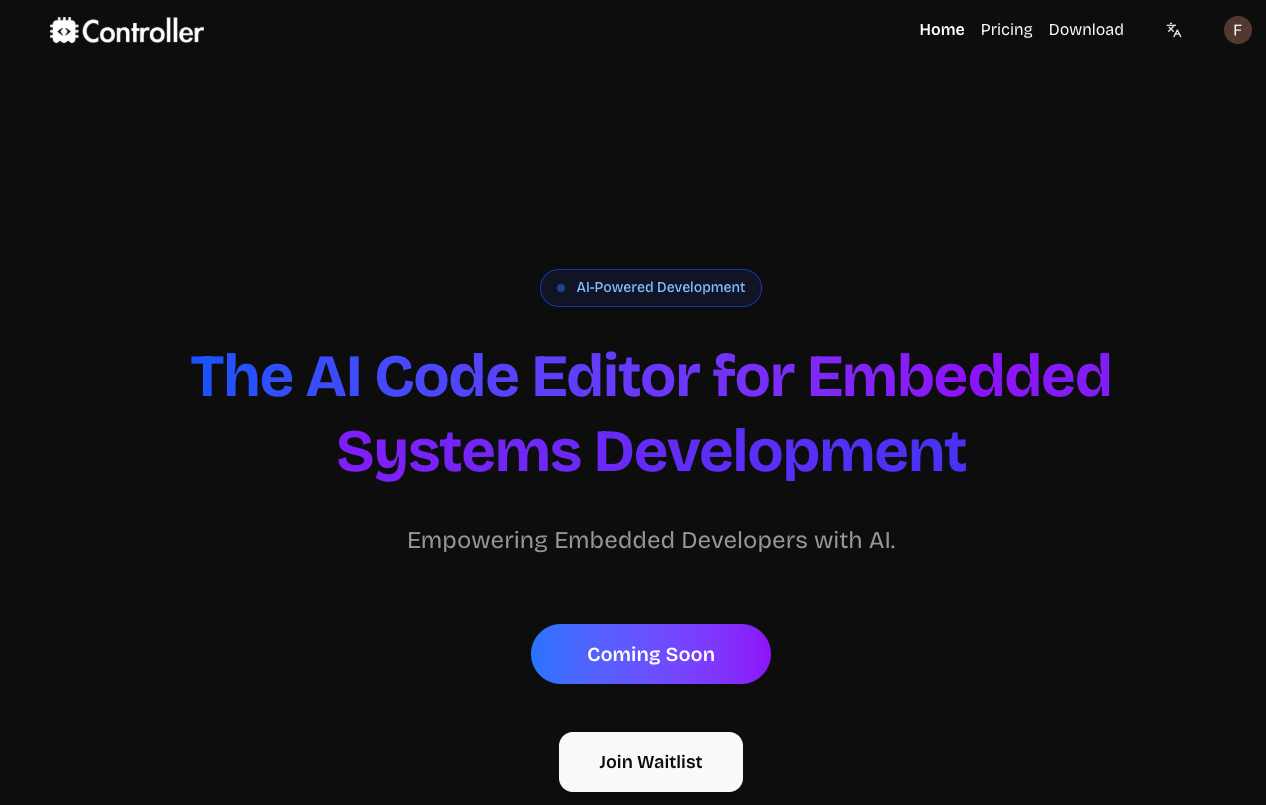
Authentication Complete
Once authenticated, you'll be redirected back to your IDE where you'll see your connected account:
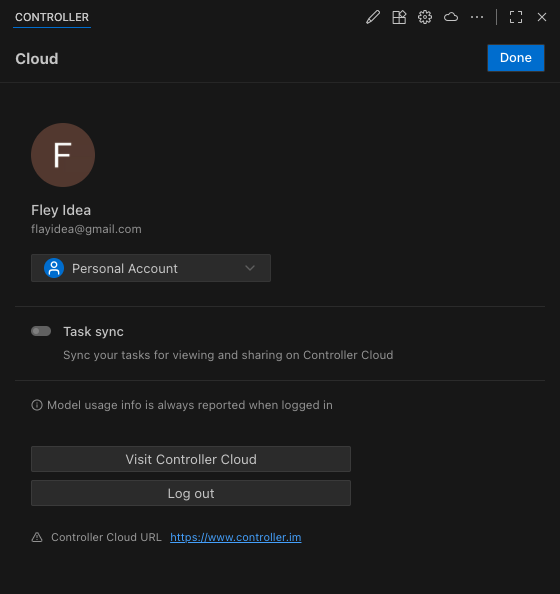
Authentication Security
Controller Cloud uses industry-standard OAuth with GitHub and Google, plus traditional email authentication to ensure secure access to your account:
- OAuth 2.0 Protocol - Secure authentication through trusted providers (GitHub and Google)
- No Password Storage - When using OAuth, Controller never stores your GitHub or Google passwords
- Encrypted Connections - All authentication requests use HTTPS encryption
- Token-Based Access - Secure tokens manage your session without exposing credentials
- Email Authentication - Traditional email/password option with secure password hashing